 Worth It AI
Tutorials
From Photo Upload to AI Video Download
A step-by-step guide to what happens after you choose a template: preparing a photo, starting one job, checking its status, and saving the finished video.
1Prepare your photo and choose a template
Choose a template and follow its photo slots. Worth It and OOUUH Trend accept one or two individual portraits; Plug Walk uses one adult photo. Worth It and OOUUH offer preset backgrounds. Plug Walk keeps its car-window setting.
Choose a template
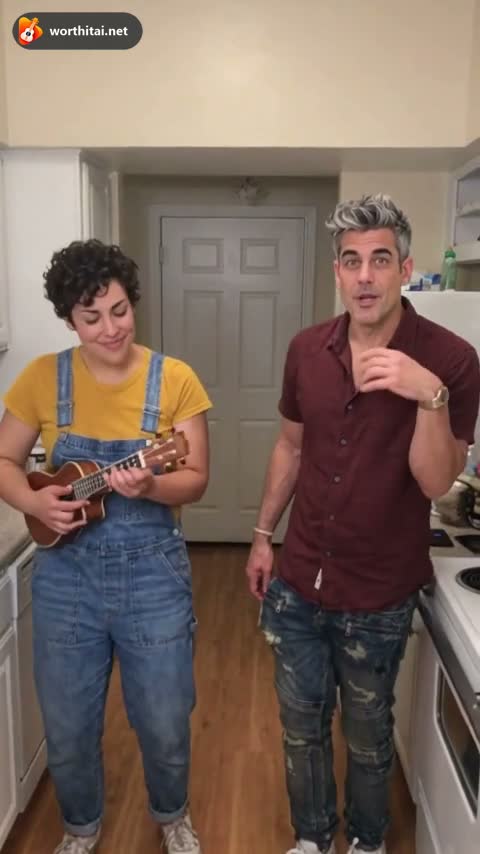 OOUUH AI
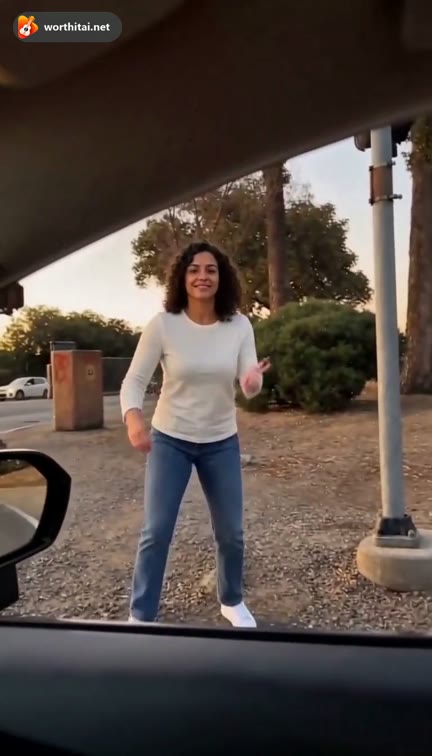 Plug Walk Filter
 C-Walk AI Dance
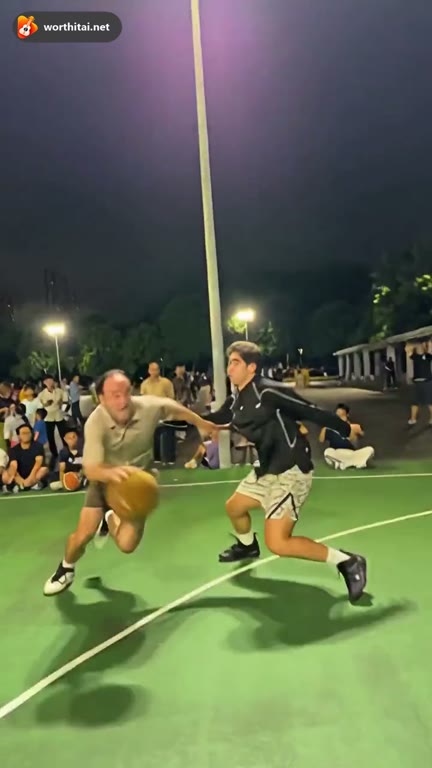 Middle Finger Dunk
Upload your photos


2Review the cost, then start one job
Choose the video quality and review the credit cost. A free preview may be available for eligible accounts. Click Generate to start your job.
Video settings
Quality
Duration13 seconds
Estimated cost
44 creditsGenerateJob status
- QueuedWaiting to run
- RenderingBeing generated
- ReadyYou can watch and download
- FailedCredits returned to your balance
3Follow the job in My videos
Video generation is asynchronous. After you submit the task, go to My videos to check the progress. The status may change as the video is being processed.
 0:00 / 0:1300:13
4If the job result and video look different
If generation fails, the credits used for that attempt are automatically returned. A completed video may look different from your photos due to movement, lighting and background, but it will follow the selected template.

5Save what you want to keep
Uploaded photos are deleted from active storage within 48 hours. Free previews are kept for up to 7 days and paid videos for up to 90 days. Download your video before it expires if you want to keep a local copy.
File storage period
- Uploaded photos48 hours
- Free preview videos7 days
- Paid videos90 days